
Reporting Hub
Status Group Filtering
Tiles built on views that carry a status group column are filtered to active records by default. Deleted and inactive rows are excluded.
Preview — not yet released. This page previews an upcoming improvement to Reporting Hub. See the pre-announcement in the Release Notes for more detail about the change.
Overview
Some views in Reporting Hub include a status group column that marks each row as active, inactive, or deleted. For the full list of views that have status group, see Status Group.
When a tile uses one of these views, Reporting Hub applies a default filter so only active rows are included. Deleted and inactive rows are excluded from the tile's counts, charts, and data tables.
Not every view has a status group column. Views without it are not filtered — all rows are included regardless of status.
How to tell what is filtered on a tile
If a tile applies active-only filtering, the tooltip on that tile lists which views are filtered. Hover over the info icon to see a message like this:
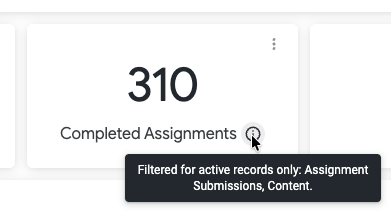
The tooltip lists only the views that are filtered to active rows on that specific tile.
You can also look up any tile in the Status Group Reference, which lists every dashboard, tile, and filtered view in one place.
Example
The Completed Assignments tile on the Company Content > Content Engagement dashboard uses these views: Assignment Submissions, Content.
The tooltip on the tile reads:
Filtered for active records only: Assignment Submissions, Content.
This means:
- Assignment Submissions — only active rows are included
- Content — only active rows are included
If a view is used by the tile but not listed in the tooltip, it is not filtered by status group on that tile. All rows from that view are included regardless of status.
The same information appears in the Status Group Reference under the Views With Default Filters column.
How to include inactive or deleted rows
Standard dashboard tiles use fixed filters that cannot be changed. To include deleted or inactive rows, use a Custom Report. Custom reports start with the same active-only defaults but allow you to modify or remove the filters.